Search This Blog

Monday, 29 March 2010

Download all of National Geographic's wallpapers with just one click


National Geographic is one of the largest non-profit scientific and educational institutions in the world.


Over the years, it has also been a great source of amazing photos and wallpapers that mesmerized people from around the globe.


Some of the most beautiful wallpapers have been placed online, on the National Geographic website, but due to their large number, downloading them has been a problem until now.


With NatGeo Wallpaper Downloader you can download over 5000 National Geographic wallpapers with just one click.


Future builds will add even more packs like: History, Adventure, Traveler, Sea Monsters, Seabed, Blue Earth, Green Earth, Forces of Nature, Lewis & Clark, Roar and many more! (As you can see, I have my hands full, so don't miss out on these great wallpapers when they'll be added!)


Be advised: Downloading wallpapers can take a while if you're on a slow (modem/ISDN) connection! If you're not using a high-speed connection I'd advise you to download the wallpaper packs one by one.


Usage:

  1. Take a look at both categories (Natgeo Magazine Walls & Natgeo Website Walls)
  2. Check the collections you'd like to download
  3. Select the resolution for each collection (if you're not sure of your screen's resolution, press Get Resolution)
  4. Select the download folder (if you don't want them being placed on the desktop)
  5. Press Start Download!

Using the National Geographic wallpapers to create a screensaver

In Windows XP

  1. Open Control Panel (from the Start menu)
  2. If you're in Category View, click Appearance and Themes and then Choose a screensaver
  3. If you're in Classic View, run Display
  4. In the Screen Saver tab, select My Pictures Slideshow from the drop-down menu and click Settings
  5. In the My Pictures Screen Saver Options window, click Browse, select the path you chose in NatGeo Wallpaper Downloader as download path and then OK to close the window
  6. Press Apply and OK in the Display Properties window

See here the main steps described above

In Windows 7

  1. Open Control Panel (from the Start menu)
  2. If you're in Category View, click Change the theme
  3. If you're in Icons view, click Personalization
  4. Click Screen Saver in the bottom right on the Personalization window
  5. In the Screen Saver Settings window, select Photos from the drop-down menu and click Settings
  6. In the Photos Screen Saver Settings window, click Browse, select the path you chose in NatGeo Wallpaper Downloader as download path and then Save to close the window
  7. Press Apply and OK in the Screen Saver Settings window
  8. Close the Personalization window

See here the main steps described above

Plans for the future? (This time I'm not calling it a "to-do list", since I'm not sure I'll be able to make all these changes possible) Well, a lot more wallpapers, of course (so please don't forget to press the Support button and select at least one of the options that will enable you to stay up-to-date with future releases), most probably a two-tabs(Magazine/Website) main interface, a shutdown when download process is over option, a faster resume alternative, and, hopefully, I'll be able to add a simple wallpaper changer mode and a Windows 7 theme creator (the last two basically have the same functionality, but themes are very easy to share with family and friends or other computers - so, sharing your favorite wallpapers will be a lot easier).


If you have a few ideas of your own, please don't hesitate to post them on the Support Forum.


You can get the latest version of NatGeo Wallpaper Downloader for free by clicking here.


Main window - NatGeo Magazine Walls tab

NatGeo Wallpaper Downloader


Main window - NatGeo Website Walls tab

NatGeo Wallpaper Downloader


Download progress window

NatGeo Wallpaper Downloader


Posted via email from Utsav's posterous

Everything You Ever Wanted to Know about GPS

The hardware in the sky that makes the Global Positioning System work is a mystery to most of us. You, however, will soon know a lot more about it.

After all, why wouldn't you want to know more about the system that makes all of today's cool location-based services possible? GPS has become our everyman, everyday companion now that it's present in just about every Smartphone out there.

So here you go, more interesting GPS factoids than you can shake a stick at:

  • There are always at least 24 active GPS satellites circling Earth, although today there are more than 30, including a couple of spares. Their orbits are spread out so that no matter where on Earth you are, you will have at least six of them in your line of sight.
  • Each GPS satellite goes around the world once every 12 hours. The satellites travel 12,500 miles (20,000 km) above us at roughly 7,000 miles per hour (11,000 km per hour). They have small boosters so they can adjust their path when needed.
  • The first full constellation of 24 satellites was completed in 1994. The first of those 24 satellites was sent up in 1989.
  • To get a reliable position reading, your GPS receiver will have to combine the signals from at least four satellites, although in some special cases, three are enough.
  • GPS was made public due to a tragedy. In 1983, Korean Air Lines Flight 007 entered Soviet airspace after a navigation error and was shot down, killing all 269 passengers. This incident resulted in President Ronald Reagan ordering the Unites States military to make the Global Positioning System available for civilian use once it was completed, so that similar incidents could be avoided in the future.
  • NAVSTAR is the US military name for the Global Positioning System.
  • GPS isn't just for navigation. It can also be used to get a very exact time stamp. Every GPS satellite has multiple atomic clocks and the time is included in the signal it sends out. With the help of these signals, a GPS receiver can determine the current time within 100 billionths of a second. These signals are for example used to synchronize base stations in cell phone networks.
  • Relativistic effects. The clocks on the satellites, although very exact, are still subject to the effects of Einstein's theory of relativity, which means that the time of the clocks in the satellites will slowly start to deviate from those on Earth. This is adjusted by control signals from Earth.
  • Ground antennas spread around the world are used to control the satellites' paths and synchronize their clocks.
  • The 50th Space Wing of the United States Air Force operates the GPS satellites. GPS is owned by and is under the control of the United States Department of Defense.
  • Until 2000, civilian GPS use was crippled by a feature called Selective Availability. It introduced a random error of up to 328 feet (100 meters) in the civilian signal to make GPS less useful for precision navigation. (GPS has different signals for military and civilian use.) Selective Availability was deactivated in May 1, 2000. The United States still has the ability to deactivate the civilian signal, if need be even for specific regions.
  • During the Gulf War in 1991, many US soldiers were equipped with civilian GPS units due to a shortage of military ones. However, Selective Availability made it extremely difficult to properly coordinate troop movements with civilian GPS units, so it was turned off for the duration of the war.
  • GPS is a work in progress. The system is continuously being upgraded and new satellites are being launched. This all means that precision will keep getting better, which will make the system increasingly useful.
  • GPS isn't the only game in town. There are several other Global Navigation Satellite Systems in existence or on their way: The European Union is working on a system called Galileo, Russia has GLONASS (completed in partnership with India), and China has plans for a system called Compass. There are also systems that offer specific regional coverage, for example Japan's QZSS and China's Beidou.
  • The beginning: Satellite navigation systems date back to 1960. That was when Transit, used by the United States Navy, was first tested successfully. Transit used up to 10 satellites, and receivers judged their position based on the Doppler effect on the signals sent out from the satellites. Modern systems like GPS work differently, relying heavily on exact timing, hence the use of atomic clocks in the GPS satellites.
  • Oh, and one last thing. Here is an animation showing how a constellation of 24 GPS satellites are spread out and and how many are visible at once:


Posted via email from Utsav's posterous

Explore the Different Editions of Microsoft Office 2010


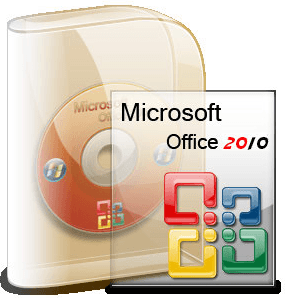
office 2010

Late last year, Microsoft promised a release date of "the middle of 2010" for the newest version of Office. Appropriately named Office 2010, we learned in January that the newest version of Office will be available in June of this year.

Over 3 and a half years after the release of Office 2007, Office 2010 will make its debut with a total of four retail editions. Microsoft decided to simplify things a bit since the 8 editions of Office 2007 were a bit more than consumers could easily understand. Read on to learn about the four retail versions of Office 2010 and the expected pricing of each.

Boxed and Product Key Cards

Retail versions of Office 2010 will be available in two forms. The traditional retail boxed form is how all previous versions of Office have been purchased since the introduction of the software. New Product Key Cards allow buyers to unlock Office 2010 that has been pre-installed on a new PC.

Office 2010 Product Key Card

However, these two forms come with one caveat. Retail boxed versions will be licensed for installation on two PCs while the Product Key Card form will be licensed for installation on one PC only. The one exception is the Home and Student edition which is licensed for installation on up to three PC.

Office 2010 Editions and Pricing

At the top of the list is Office 2010 Professional that is marketed toward the high-end home and home office user. With the boxed retail version scheduled to cost US$499 and the Product Key Card priced at US$349, some significant savings can be had for opting to avoid the purchase of a physical product.

The Professional edition of Office 2010 contains Word, Excel, PowerPoint, OneNote, Outlook, Publisher, and Access. Notice that only the Professional edition of 2010 ships with Access 2010.

office 2010 student

Next in line is the Home and Business edition, new to the Office lineup. At US$279 for the retail box and US$199 for the Product Key Card, you can still save quite a bit of money by choosing the download version.

Office 2010 Home and Business ships with Word, Excel, PowerPoint, OneNote, and Outlook. This edition is aimed at middle-of-the-road consumers such as small business owners who would enjoy the scheduling and organization features of Outlook.

For Office 2007, Home and Student was the most popular edition. This is likely a tradition that will carry over to Office 2010. Home and Student ships with Word, Excel, PowerPoint, and OneNote and is aimed at mainstream users of productivity software.

At just US$149 for the retail box and US$99 for the Product Key Card, this edition is clearly the best bargain in the bunch.

Finally, Office Professional 2010 Academic edition is licensed only for use by educators and students. Available in campus bookstores and some retail outlets, you must meet Microsoft's lofty requirements before you can legally use the Academic edition.

Containing the same programs as the full retail Professional edition, this edition is the biggest bargain if you qualify for a license. At just $99, the savings on this edition just may make it worth going back to college.

Simplifying matters for consumers, Microsoft has backed off on the number of planned editions of Office 2010. Due in June of 2010, consumers can save significantly by choosing to purchase a Product Key Card rather than the full retail boxed version of the software when buying a new PC.

Remember, however, that with the exception of the Home and Student edition, the boxed versions are licensed for two PCs and the Product Key Card versions are licensed for one PC only.

Posted via email from Utsav's posterous

File repair, file data recovery software and undelete for email, databases, office applications and media

FreeUndelete restores deleted files, including those removed from Windows Recycle Bin. In case of accidental removal of files on a NTFS (1.0 and 2.0) (default for Windows Vista, XP, 2000 and NT), FAT32, FAT16 or FAT12 file systems this is the utility to help.

Supported file systems:
NTFS 1.0, NTFS 2.0, FAT12, FAT16 and FAT32

The recovered files are saved into a new user-selected location to prevent overwriting the deleted files on the original media.

Free For Personal Use!

It is our pleasure to emphasize that FreeUndelete is free for personal use. There is no charge, direct or hidden, to download and use a fully functional copy of the program. The program does not install any spyware or adware along with it. It does not populate user's desktop with pop-up ads or forcefully subscribe user to mailing lists.

Please note that purchase is mandatory for use in business environment. Registered business users get guaranteed customer support service. For private users customer support is not guaranteed and depends on support staff workload.

Detailed Product Information

Order Business License

Posted via web from Utsav's posterous

Friday, 19 March 2010

50 Fantastic Bing Tricks for Students & Librarians

Bing has made quite an entrance in the Internet search world. This new way of searching provides quick and easy shortcuts that don't always require reading through lists of websites and clicking on each one to find what you want. Check out the following tricks to see how Bing can help students and librarians find the information they need in a snap.

Finding Information

From doing math without a calculator to getting definitions, use Bing to find this information quickly and easily.

  1. Use the background image. Hovering over different locations on the background image provides an opportunity to learn facts about the image or related topics.
  2. Do math. Enter a math calculation directly into the search box to compute anything from simple math to trig functions.
  3. Ask questions directly. Type a question into the search box and if the answer is located in Encarta encyclopedia, you will get an answer directly.
  4. Get definitions. Enter "define" or "definition" along with a word to find a definition of that word.
  5. Look up IP addresses. Type in IP: [IP address] (substituting [IP address] with the actual IP address) to find a list of domains associated with that IP address.
  6. Find statistical information. Find statistical information by typing what you want to know, such as "population of Texas" or "number of bald eagles in America" to get the answer.
  7. Locate area codes and zip codes. Enter an area code or zip code into the search box and find out with what location the number is associated.
  8. Find business contact information. If you have ever tried to find a phone number for a business with little success, then try typing the name of the business in Bing's search box. They frequently provide contact information even for companies with hard-to-find phone numbers.
  9. Get used car information. Simply type a car's VIN into the search box to get history on that car.
  10. Get stock quotes. Add "stock" or "quote" to the name of the company or their stock quote symbol to find stock quotes and other financial information.
  11. Find holiday dates. Enter the holiday and year to find out what date that holiday will occur.
  12. Get sports information. Get scores, stats, game times, and much more quickly and easily by searching for your team only or adding specifically what you want, such as "Mariners score."

Research and Collaboration

Bing is great for Internet research and sharing that research for others. Find out how with these suggestions.

  1. Save search results. Save your search results to a local folder online to have access to them without having to remember how you performed the search.
  2. Share search results. If you have found important information you want to share, email your search results or share via Facebook.
  3. Find specific types of files. Use a keyword and "contains: file type" (with file type being the file type you are seeking) to find PDFs, MP3s, and other files.
  4. Get results from a specific region. Type your keyword and loc:US (or any other location) to get webpages from specific countries.
  5. Restrict search to titles. If you want to find your keyword in a title only, use intitle: to search.
  6. Disable search suggestions. If you don't want Bing's search suggestions, just click on "Turn off " at the bottom of the suggestions. To turn them back on, follow these directions.
  7. Show more results. If you want more than 10 results per page, change your Preference to get up to 50 results per page.
  8. Get search results as RSS feeds. Get your search results sent to your favorite reader where you can access them later or share with others.
  9. Use related searches. When searching for a topic, use the related searches located in the left pane to more easily find what you are seeking.
  10. Control search history. Learn how to turn off the search history or clear the search history here.

Images and Videos

Use images and videos easily and more quickly with Bing to find the information you need.

  1. Easily find images. The image search on Bing provides many images that are easily scanable.
  2. Preview videos. Get a whole page of video thumbnails, then just hover over each to start it playing.
  3. Preview websites. Get an image of the website from your search results just by hovering over the link.
  4. Find videos of a specific length. Whether you are searching for a full episode of your favorite show or a quick overview of a how-to, find the length video you want by following these instructions.
  5. Specify the size image. When looking for an image, you can specify what size image you want, whether small, medium, large, or wallpaper.
  6. Search for color or black and white. While performing an image search, specify if you want only color or only black and white images.
  7. Ensure your images are safe for everyone. This blog post from Bing tells you how to ensure your image previews don't show adult content.
  8. Save Bing's background images. If you want to keep the background images from Bing on your desktop, follow these instructions.

Travel

Whether you are going home for the holidays or traveling to the next big conference, use these tips to help facilitate your travel with Bing.

  1. Find low air fares. Enter "flights from x to y" (with x and y being the cities of travel) to find low air fares as well as predicted fare trends.
  2. Get flight status. Enter your flight number along with "flight status" to immediately find out the status of your flight.
  3. Plan your stay. When you enter a place name, you will receive links for attractions, weather, nightlife, tours, and images of that location.
  4. Find a hotel. Get star ratings, reviews, a map, and more details to help you find the perfect place to stay.
  5. Eat out. Get maps, menus, and reviews easily for restaurants in the area.
  6. Find directions. When you enter an address, you will get a map and directions powered by Microsoft Virtual Earth.
  7. Get real-time traffic information. The traffic map has routes highlighted in red and green to designate which roads are having problems and which are good.
  8. Find out the weather. Weather forecasts are easy to find and easy to read when you select "weather."
  9. Convert currency. Type in "1 x in y" (with x and y being the currency abbreviations) to get an automatic currency conversion.
  10. Take advantage of local search features. From detailed business listings to business scorecards to one-click directions, take advantage of the Bing local features.

Mobile

Just because you stepped out of the library or away from class doesn't mean you can't still access the benefits of Bing. Find out what you can do with Bing and your mobile.

  1. Use their mobile site. The Bing mobile site is specially designed for mobile phone usage.
  2. Download the app. From your mobile phone's browser, go to http://m.bing.com/download/ to download their mobile app.
  3. Get mobile with a text. Visit Bing for mobile to enter your phone number and receive a text with the link.
  4. Download Bing Tones. Download these free MP3 ring tones for your cell phone from Bing.
  5. Try Bing 411. Call 1-800-BING-411 to get information via text message or to contact a business directly–for free.
  6. Get turn-by-turn directions. Save both home and work starting points to get turn-by-turn directions over your phone from Bing 411 if you don't have a phone with GPS.
  7. Get walking directions. If you are on foot, don't rely on directions down highways, instead, get the step-by-step walking directions on your phone.
  8. Get weather by phone. No need to get a meteorology degree online. Bing 411 also delivers very detailed weather for your specific location over the phone.
  9. Find movies. Locate theaters, find show times, and buy tickets all from your phone.
  10. Go shopping. Not only can you locate products, but you can also do a price comparison to ensure you are getting the best deal.

Posted via email from Utsav's posterous

Thursday, 18 March 2010

25 Useful and Time Saving Computer Tips

As someone who spends many, many, MANY hours every day on a computer (seriously. It's a lot. Like, I'm not even kidding. Except maybe a little.), I'm always looking for ways to do things faster, to complete a small task more quickly. So I can spend less time on the computer? Nah. I just want to Stumble.

I've found a bunch of tips that make doing lots of little things, like switching apps and jumping to the desktop. They might only save a couple of seconds each time, but those seconds add up awfully quickly for anyone who spends a lot of time at a computer.

Here are 25 little things to make your time at the computer faster and more efficient:

alt-tab
Switch apps – 
Alt-Tab on Windows, or Command-Tab in Mac OS, will let you flip through your current applications right from the keyboard, without any mouse clicks or hunting.

Show the Desktop – Press F11 on a Mac, or Windows-M on Windows, to see the desktop. Press the keys again, and you'll go right back to where you were.

Sleep on Close – All laptops can be set to go to sleep or hibernate when the lid is closed, and then to resume when you open the lid again. Enable this (in Power Options of Windows, and System Preferences of Mac OS), and your done-to-leaving and sitting-to-working times reduce drastically.

Browser Refresh – To manually refresh a webpage, hit F5 in Windows, or Command-R in Mac OS.

Use the Search Bar – Don't go to google.com every time you need to search for something – instead, hit Control-K (Windows) or Command-K (Mac OS), or Command-L-Tab (Safari on Mac) to jump right to the search bar, where you can search much faster.

Skip the "WWW" – No need to type the www at the beginning of most urls. Just type google.com, or the20life.com, and your browser figures out the rest.

Tab The Next Field – When you're filling out a form, hitting Tab automatically moves your cursor to the next field, where you can keep typing. Shift-Tab takes you backwards one field, if you need to backtrack.

Back and Forth in Browser – In Windows, Control-Left takes you back a page, and Control-Right moves you forward. On a Mac, it's Command-Left to go back, and Command-Right to go forward.

Jump to the Address Bar – Control-L or Command-L will take you right to the address bar, and select all the text there, so you can start typing your new web address right away.

Multi-Select with Shift – Let's say you want to select 30 items in a row – to copy, move, delete, or whatever. Click the first, hold Shift, and click the last. Boom – all the ones in between get selected as well.

Open with the right app – Take a couple of seconds to set the auto-open dialogs (the application a given file opens with by default) to the app you want. That way, there's no auto-opening and slowness of Photoshop every time you want to view an image.

Kill Slow Apps – If your computer's running slowly, odds are it's because an app is hanging or crashed, and taking over your computer. On a Mac, open the Activity Monitor to find out what's slowing down your computer. On Windows, right-click the taskbar and select "Task Manager" to do the same thing.

Click-Highlight – If you double-click a word, in any application, it'll be highlighted. Triple-click, and the whole paragraph gets selected.

Scroll a Page – One click of the Space bar will take you down a page, as long as you're not currently typing something, in almost any application.

Close Windows – Alt-F4 closes the application you're currently using – it's much faster than using the tiny little "X" at the top of the screen, and accidentally hitting the "Maximize" button, and then having to find it again. And then clicking "Minimize" by accident. Not that I've ever done that.

quicklaunch
Quick Launch – The Quick Launch bar lives at the right side of your taskbar, and can be the perfect place for keeping shortcuts to all your favorite apps. Just drag an application icon into the Quick Launch bar, and you'll be able to open it with just one click, and minimal icon-hunting.

Full-Screen Browsing – In a browser, or in Word, if you hit F11, you'll get a full-screen viewing experience, free of toolbars and other space-stealing nonsense.

Full Screen – Click twice on the title bar of any window, and it'll automatically maximize it to fill the whole screen. Double-click again, and it'll restore the window to its previous size.

Open Windows Explorer – Windows-E opens Windows Explorer, where you'll find your documents, program files, and the like.

Lock The Computer – Windows-L will lock your computer, taking you back to the login screen. That's a useful added layer of security, and a good thing to remember to do when you walk away from the computer.

Shortcut Keyboard Shortcut – Many of us have icons to our favorite applications on our desktop, or in a folder of favorites. If you right-click the shortcut, and select "Properties," you can create a shortcut to that application – say, Windows-J – that will launch the app.

Flip Through Same App Windows – Command-~ (the button right below Escape) creates something like Command-Tab, but only in the current application. If you've got ten Firefox windows open at a time, or need to flip between Word docs, this is a life saver.

Launch apps with Spotlight – You really don't need the Dock, or Finder, or anything else to open a file or application. Just hit Command-Space to open Spotlight, and start typing what you're looking for. Move up and down the list with arrows, and Enter opens your app or file.

QuickLook
Use Quick Look – Quick Look supports most file types, and can show you the contents of a file (read a PDF, hear a song, see a Photoshop file), without ever opening the app. Just select a file, and hit Space to see it in Quick Look.

Open a File – Instead of Pressing Enter (which doesn't work), or double-clicking a file to open it, just hit Command-O. It'll pop right open.

Delete a File – Command-Delete automatically sends the one (or many) selected files to the Trash.

Much of what we all do on computers is repetitive, and administrative – doing something, so that you can do something creative or useful. With these tricks (and MUCH more – nearly everything you do, there's a way to do faster), you'll be flying through the boring stuff.

What's your favorite time-saving trick on your computer?

Posted via email from Utsav's posterous

Techtree.com India News Internet Scammers Target Facebook Users Again

Tuesday, 9 March 2010

A History of Phones: 9 Telephone Transitions that Rocked the Industry

There are three things most people have on them at all times: keys, wallet, and phone. Considering how integral phones are to our lives, it's strange to think how quickly they've risen from being only landlines, to the size of backpacks, to thinner than our wallet (and smarter than our old computer). Here's a tour through the history of phones – a revealing look at the past and future of one of our most celebrated technological companions:

The First Phones

(Images via lifethinking, porticus, pmptoday)

The first telephones were a purely scientific endeavor, with little thought to aesthetics. The entire focus of these first creations was to come up with a replacement for the primitive telegraph. Alexander Graham Bell is credited with the invention of the first working telephone, though there is controversy over who actually received the patent first: Bell, or another inventor, Elisha Gray, who came up with a model using similar technology. The first call was made from Bell to an assistant sitting 15 feet away on March 10, 1876, when Bell said, "Watson, come here, I want you."

The Telephone Book

(Images via opengardens, 4thefirsttime)

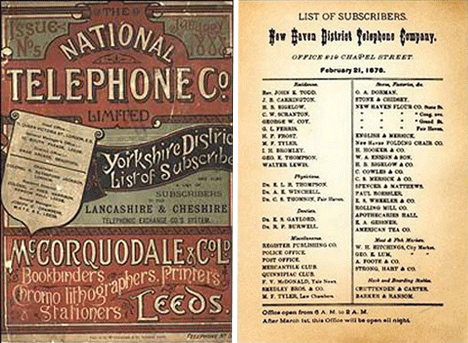
When telephones first hit the market they were about as elite as a new technology can be. The first phonebook (pictured right), was a single sheet that didn't even list the participant's phone numbers (because how could you call them?). These early phonebooks are incredibly sought after collector's items, an ironic change considering the much maligned yellow phone book of today.

Early Phones

(Images via myfinances, old-photos, oldphonerepair, connected-earth)

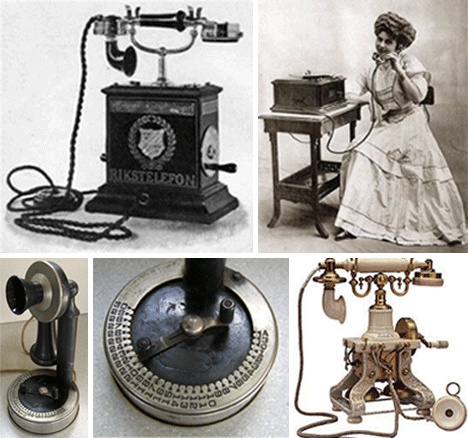
Early telephones were for the elite, and were so uncommon that they came in widely varying designs, nearly all ostentatious and victorian in appearance. It's odd to think that the two handed design was the first attempt at a handset, and not the one handed design we're now so used to.

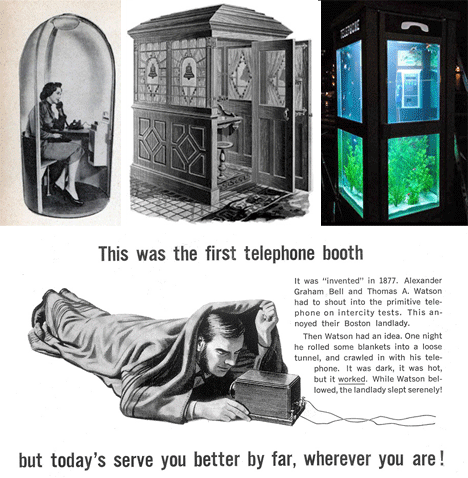
Phone Booths

(Images via textually, 4thefirsttime, felixip, porticus)

Phone booths were once widely seen as the wave of the future, for they allowed you to call someone from the road (kind of), and how else would mobile calling ever be possible? The rise and fall of the phone booth was swift, and now they're more an icon than something most people ever use. Chances are the next generation will only know about phone booths from cliched scenes in television and movies.

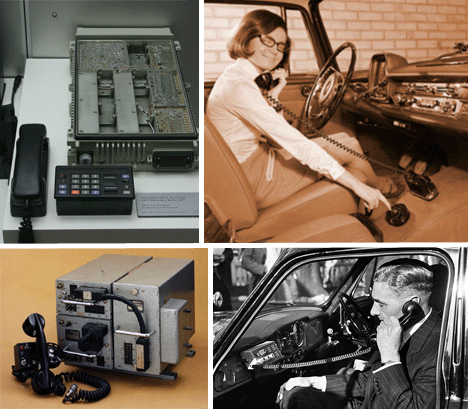
Car Phones

(Images via wikimedia, themotherhood, wearentfrench, darkroastedblend)

When phones went the least bit mobile, the amount of hardware required to accompany them required they be incorporated into a car so the heavy guts of the phone could reside in the trunk. This is an additional example of a technology that the next generation will find laughable, despite its revolutionary effect at the time.

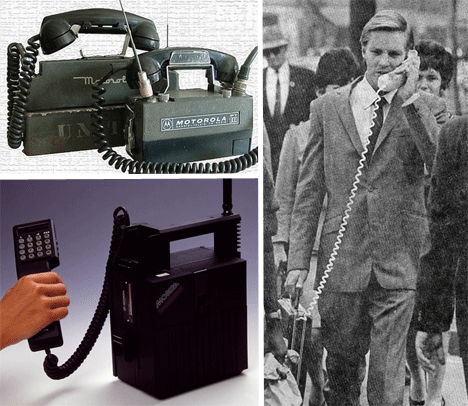
Mobile Phones

(Images via textually, yesterdaysclues, fiercewireless)

The first truly mobile phones… were not very mobile, though better than their hulking car phone predecessors. A halting step towards true mobility, these behemoths weighed up to 10 pounds and were basically an extra briefcase. They carried a hefty price and weren't widely available until slimmed down versions started hitting the market.

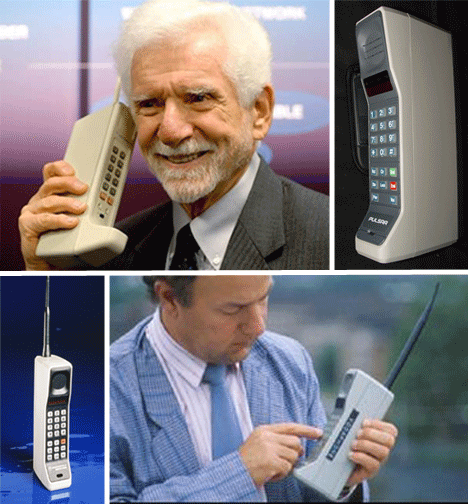
Handheld Phones

(Images via dialaphone, recoveryourlife, mobiletracker, madeintheshaide)

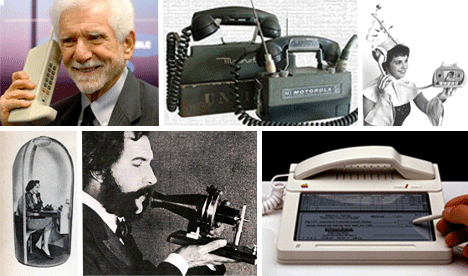
The mobile phone stunned the public, and was actually produced as a technology demonstration more than an actual attempt at cutting the landline. The industry was as shocked by the clamor for mobile phones as the public was shocked by them. They began their lives as what are now considered "brick" models, for their sturdy heft and blocky, angular appearance.

Smart Phones

(Images via onedigitallife, invokemedia)

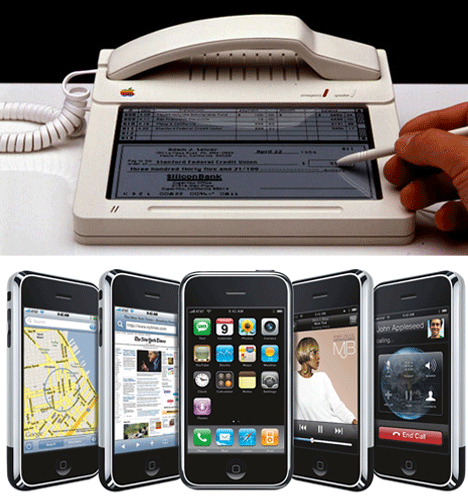
Apple's iPhone shocked the industry and spurred an onslaught of fierce smartphone competition, but Apple made a less well received foray into communications in 1983, when they came out with a stunningly advanced contribution to the typical landline – a touch screen.

Video Phones

(Images via techantropology, pixware, modernmechanix, sexygadgets)

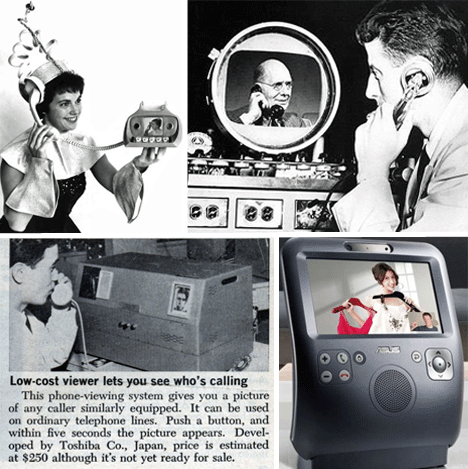
Video phones were a consistent vision of the future of communication, but nobody took into account that one of the greatest benefits of talking on the phone is being able to communicate without having to worry about your appearance. The ability to multitask while on the phone is crucial, but videophones require you to be planted, and focused. Visions of the future of communication now mostly revolve around VOIP technology (calling via the internet).

The Future of Phones

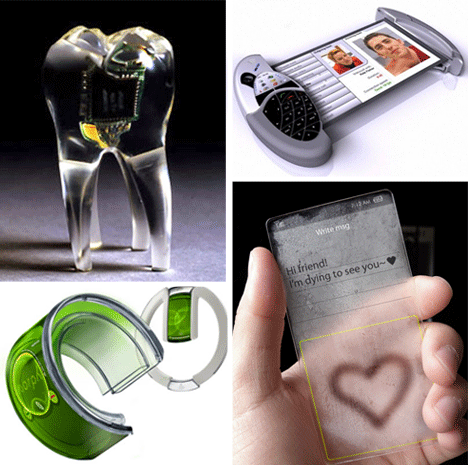
(Images via nextnature, itechnews, handcellphone, 

Posted via email from Utsav's posterous